Skip the search
Take people straight to your profile, without asking them to type your name or sort through similar profiles.
LinkedIn QR code
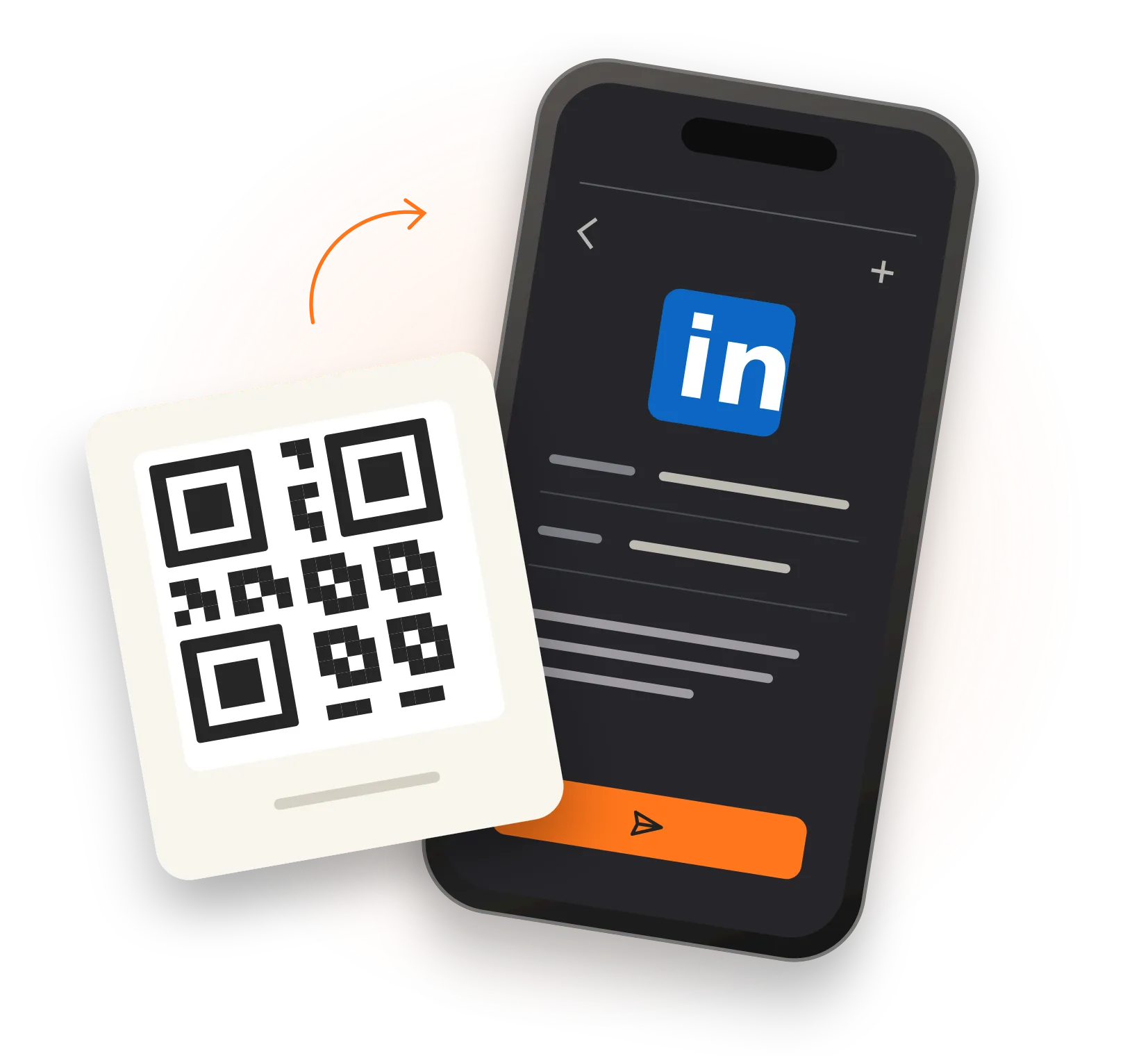
Connect your business cards, résumé, or presentations to your LinkedIn profile or company page. One quick phone scan lets people find and connect with you without searching for your name.
A more direct link to your LinkedIn
Share your professional profile from your business cards, résumé, or the materials you already use to introduce yourself.
Take people straight to your profile, without asking them to type your name or sort through similar profiles.
Give people one link to your work history, projects, and posts.
Add your QR code to cards, résumés, and presentations so people can learn about you and choose how to connect.
Set it up in three steps
Copy the link to your LinkedIn profile or company page and paste it into Trakelino.
Customize it with your brand colors and logo, then download a high-quality version that’s ready to use.
Add it to your business card, résumé, or the final slide of a work presentation.
One QR code, more ways to connect
Here are three practical ways to add your QR code and make your LinkedIn profile easy for new contacts to find.
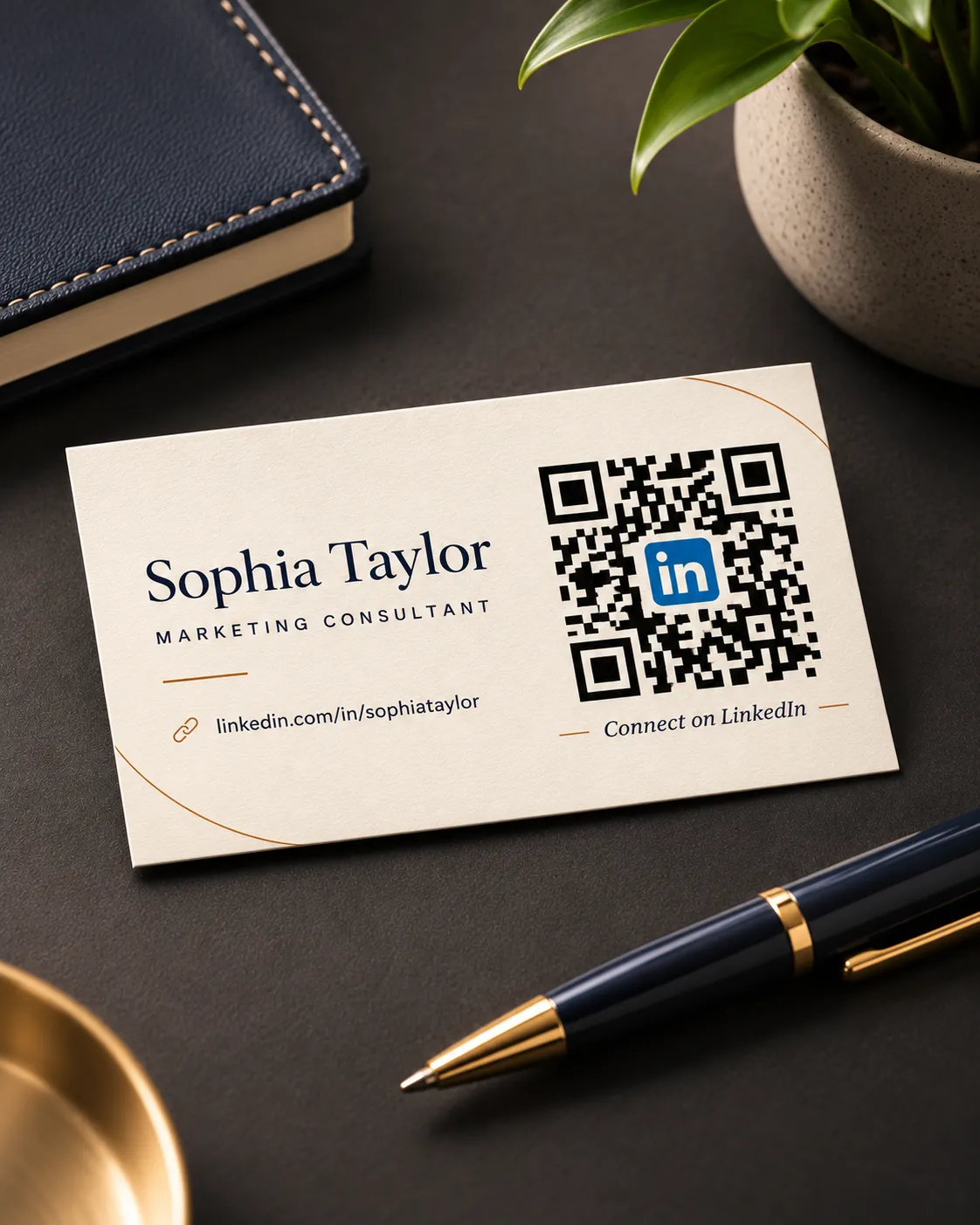
Turn a first introduction into a real connection. One scan opens your LinkedIn profile so people can learn about your experience.
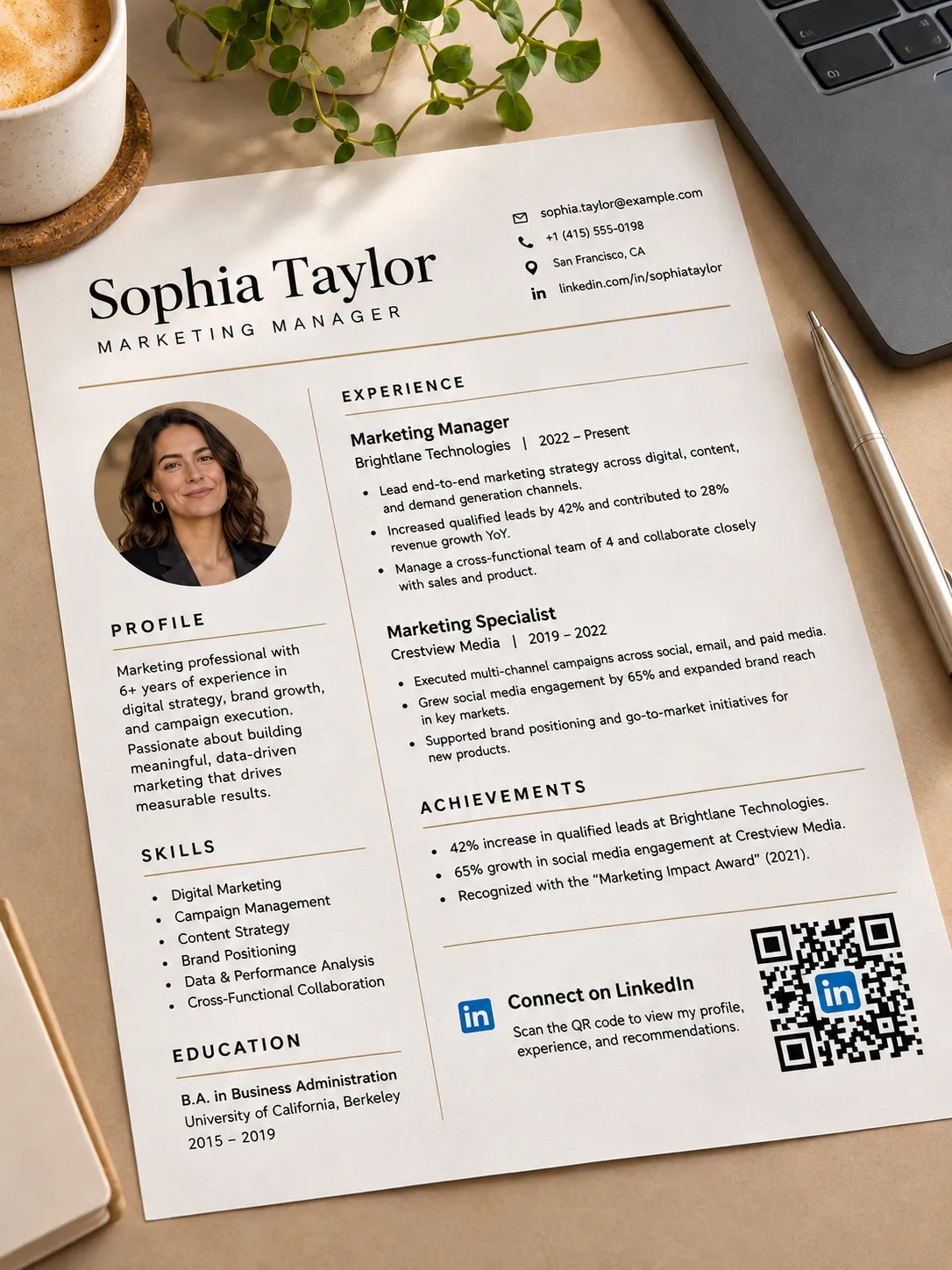
Add your QR code to your résumé to share your projects, recommendations, and full experience without taking up more space on the page.

Add your LinkedIn QR code to the final slide of a talk or meeting so everyone can connect with you.
A link that goes with your career
Share your LinkedIn profile or company page with one QR code. With a dynamic QR code, you can change the link from your dashboard whenever you want*, without reprinting your cards or résumé.
* Depending on your plan.
See more QR code types
QR code design and customization
Give your QR code your brand colors and style. Choose a classic design, add color, or include your logo so it fits your business cards, résumé, and presentations.
PNG for sharing · SVG for print at any size
Create a custom QR codeReal-time metrics
With dynamic QR codes, see how often people scan your cards, résumé, or presentations and find out where they get the most interest. Figures are illustrative; available data depends on your plan. Scans count when the code is opened.
See plans and analyticsFrequently asked questions
Link to your personal profile, company page, a featured post, an event, or a job listing. Copy the public LinkedIn link, paste it into Trakelino, and create your code in seconds.
A static QR code keeps the same link. If your profile address changes or you want to link somewhere else, you need to print a new code. A dynamic QR code lets you change the link from your dashboard without reprinting and also provides scan statistics.
No. If someone has the app, the code opens your profile in LinkedIn. Otherwise, it opens in their phone’s browser so they can view your information or sign in.
Yes. With a dynamic QR code, you can update the destination link from your Trakelino account whenever you need to, depending on your plan. The code on your business cards, résumé, or presentations keeps working.
No. Scanning opens your profile or company page so the person can choose to connect, follow you, or message you. They don’t have to search for your name.
With dynamic QR codes, you can see how many times your code was scanned, which days and times were busiest, and the general locations and devices used. This helps you see which cards, résumés, or presentations work best.
Try it free and start connecting, updating, and measuring with ease.